
Admin Procedures
How To send records when ROI is Received
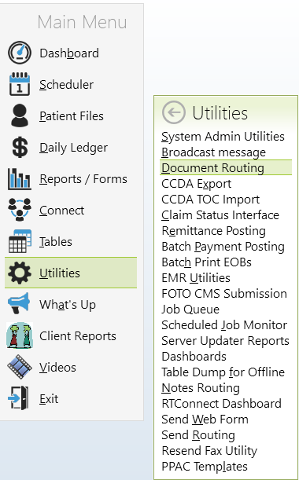
In raintree you will go the Utilities under Utilities you will click on Document Routing.
Once you open the document routing page you will see all the faxes that have been received. You may need to adjust the date range, depending on when the last time records requests were processed.
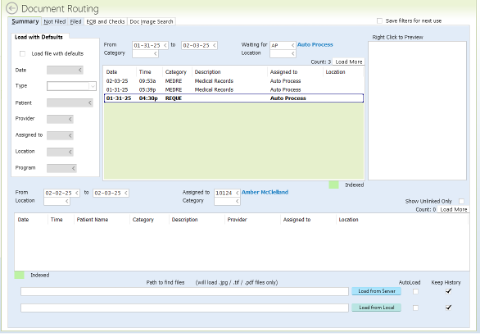
Select the medical records request
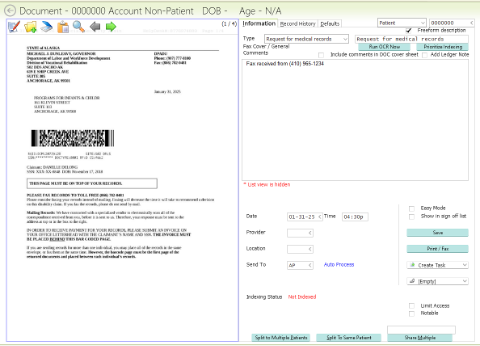
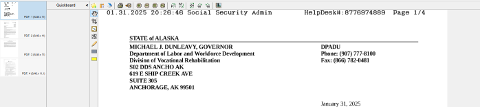
Click on the records request to open it. There you should have a fax cover sheet and possibly a letter stating what the request for records is asking for. Then you should then have a signed ROI make sure to check that it is signed.
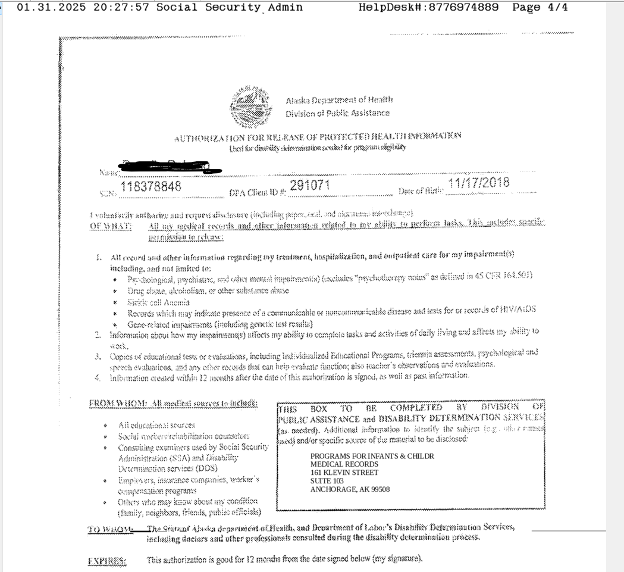
Once you have verified that everything is there and correct you will open another tab in raintree. Go to Patient files, F to find , enter child's name that the records request was for.
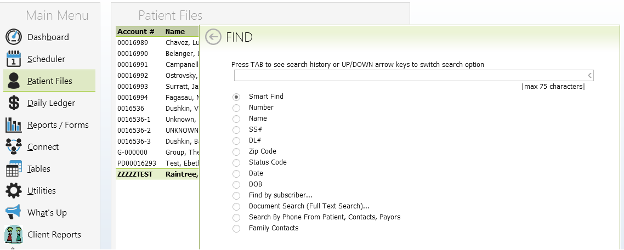
Go into the chart and get the last 5 numbers of the child’s chart number.

Then go back to the Raintree tab that has the open document routing page.
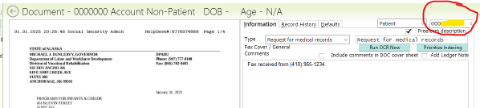
You will enter the 5 numbers from the chart and that will bring the child’s name and chart up.

F10 to save the medical records request in chart.
Go back to the Raintree tab that you had the child’s chart open in and under the Documents/Task tab the medical records request will be there under scan documents.
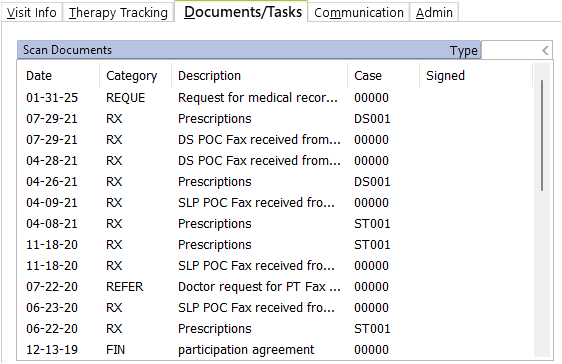
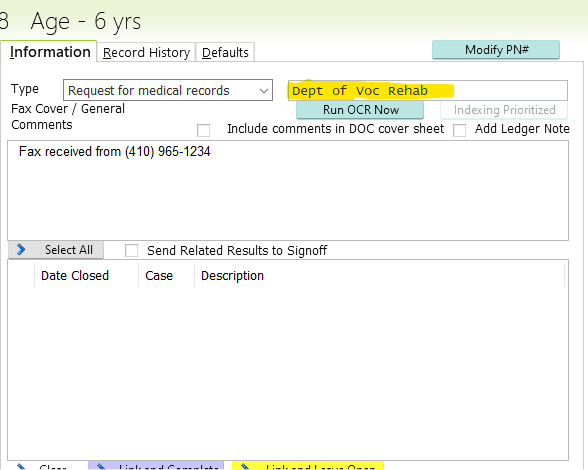
Double click on the Request to open it up. In the right corner you will enter the place that the request came from. F 10 to save.
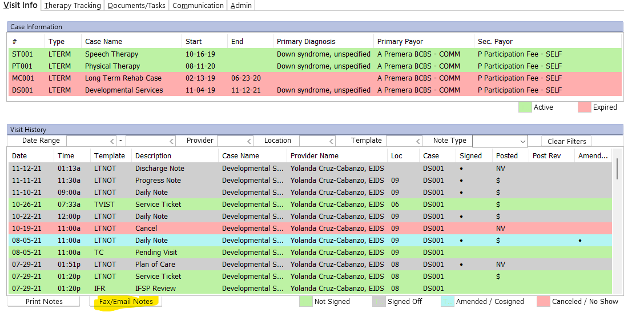
Then you will go to the Visit Info tab and click on the Fax/Email Notes tab.
The Send Documents page will come up and you will click on clear Filters.
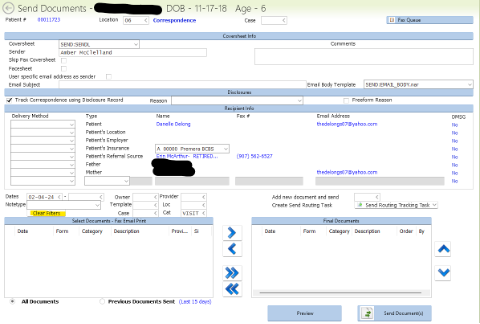
Once you click on Clear Filters all the records will come up. The First one that you should put in the records to be sent is the ROI requesting the records. From there you will more than likely only be sending Intake, Functional Evals, IFSP’s, Progress, and Discharge Notes.
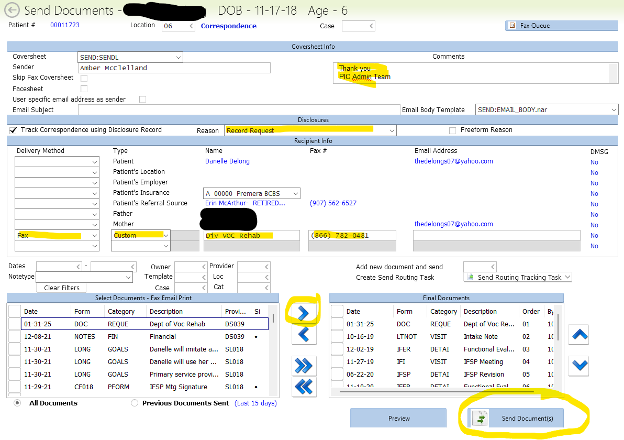
You can either send to a known Referral Source OR a custom. If you need to send to a custom fax or email, you will need to fill out the highlighted areas above on the Send Documents tab. Make sure that you are sending records back to the place that requested them. Once everything is entered you can then send records with ROI to the place that sent the request.
Affidavit/Court Order Requests:
Go to Document Routing in RT:
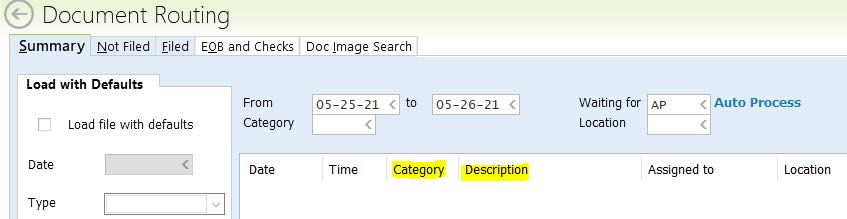
Category: Request for Medical Records
- Description: Change description to Name of Recipient
- Find Child and file in child’s chart in RT
OR
Admin email
Necessary Records to send to recipient(s):
(CAT-VISIT):
Screenings
Intake Note
POC (if enrolled, the newest POC)
Discharge Note (if exited)
Consultations
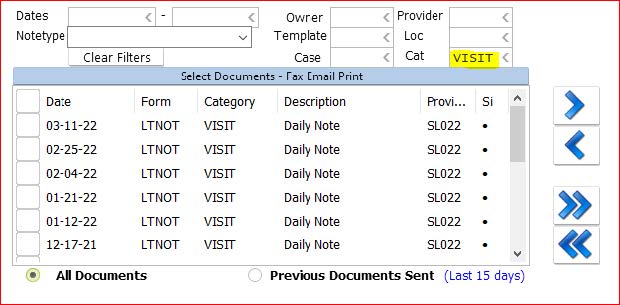
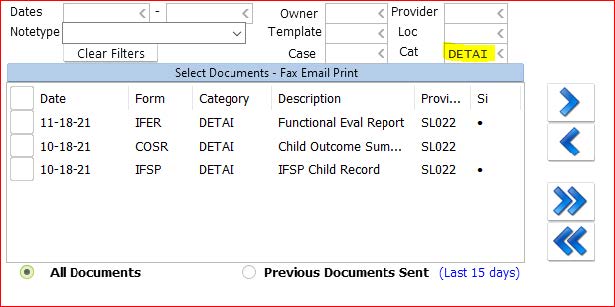
(CAT: DETAI):
Functional Evaluation Report(s)
Combined IFSP Record (if enrolled)
Look for 5 things:
- Requestor
- Case #
- Date Requested By
- Judge Signature
- IF valid idea of ROI is in the document

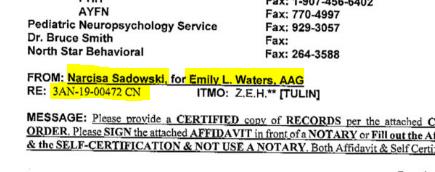
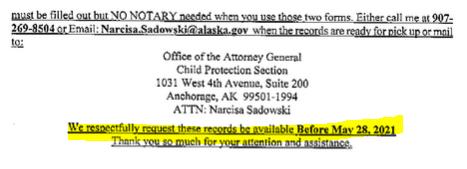
Identify child on request:
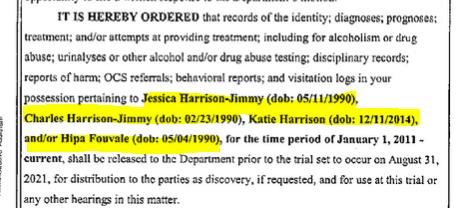
- Go to child’s chart to either fax/email necessary documents to recipient
- If large stack of documents needs sent then mail to recipient; if moderate to small stack of records need sent then either fax or email to recipient.
- Those who are parents/guardians listed on court order will be included on a Letter of No Records printed on letterhead:
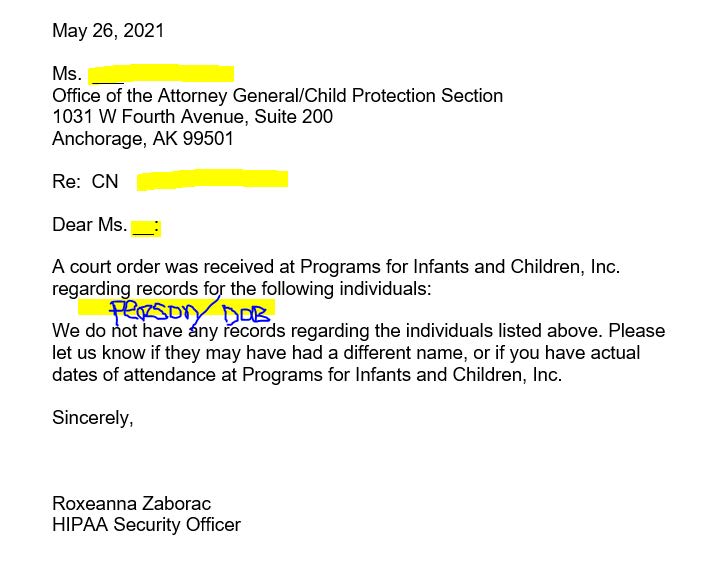
- Make sure to print out Letter of No Record (if applicable) and send letter along with necessary documents or send via fax or email to recipient.
- Scan Letter of No Record into Scan folder so you can put it into child’s chart in RT.
- If there is an Affidavit attached to court order then complete Affidavit/Self Certification. Scan affidavit into child’s RT chart. An affidavit must be mailed to the recipient in addition to faxing/emailing document to recipient.
Court Records With Affidavit:
Fill out Affidavit as per example:
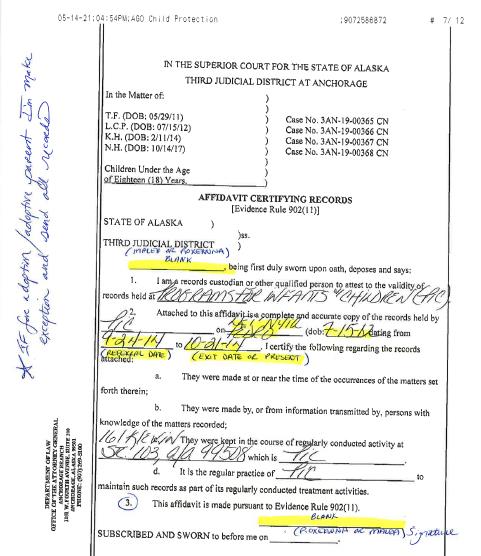
- If adoption/adoptive parent request records it is the exception to send necessary records plus daily notes to recipient
- Call Recipient for notary if needed or use self-certification sheet
- Make copy of Affidavit and full set of records included once signed by notary/yourself (or self-certification) by scanning document into Scan folder so you can put into child’s chart in RT
- Scan all sent documents and affidavits in chart to show that it has been sent