The functional evaluation is the combined documentation from both primary and secondary providers. It includes a detailed narrative of the child’s current strengths and challenges, along with evaluation background, test scores, child outcome ratings, and eligibility determination. In some cases, the secondary provider may be substituted with relevant medical records from the child’s healthcare history.
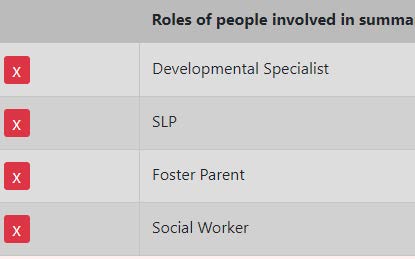
Evaluations are conducted with two providers who must be from different disciplines (e.g., OT, PT, SLP, SW, DS). One provider acts as the primary service provider, and the other as the secondary provider. Each completes their section of the initial or annual evaluation in the electronic health record (EHR), which supports service billing.
In some cases, a provider may use medical records in place of a second provider’s input. Instructions for this process are provided below, scroll to 'Provider: How to complete Function Evaluation using Medical Records'.
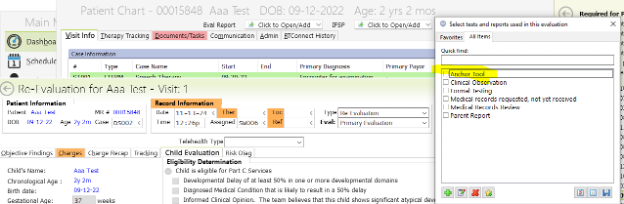
Note: The IDA-2 is the state approved anchor tool that meets Part C eligibility criteria. While standardized, it is administered in the home, which is not a controlled or standardized testing environment. The State ILP maintains the list of approved anchor tools.
Provider: Completing Functional Evaluation
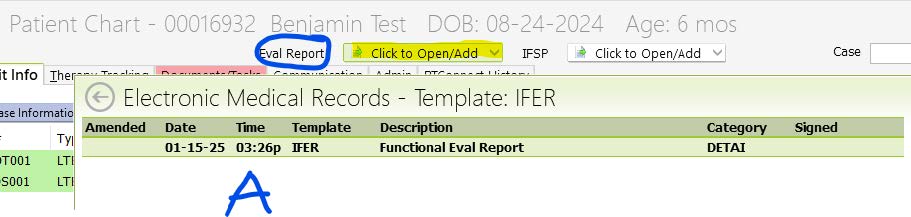
The Primary Evaluator generates the Functional Evaluation document through the Patient’s Chart, after the Primary and Secondary evaluations have been completed.
In Patient Chart, in the upper center/left corner is the ‘Eval Report’, click on the bar ‘Click to Open/Add’ , it will take you to the Functional Evaluation medical records, enter ‘A’ to Add.
Note: Do Not Roll Forward (unless you would like the previous Functional Evaluation to be pulled into the Functional Evaluation). Just type "A" to add.
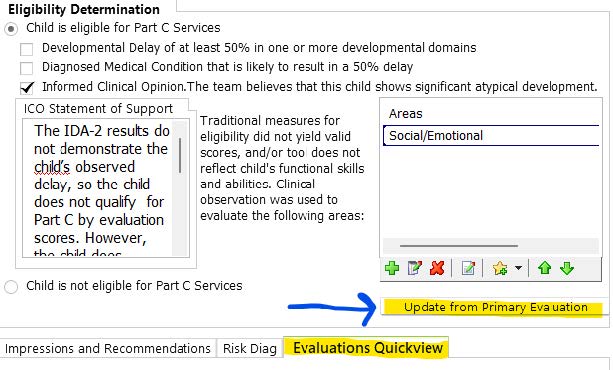
Under the Eligibility Determination tab, Begin by clicking on the ‘Evaluations Quickview’ tab:
In the ‘Evaluations Quickview’ tab: there’s a list of all the evaluations, use the scroll bar on the right to view the list (listed in chronological order) and under the ‘Date’ heading is a checkbox for each evaluation. Select the evaluations you would like to merge to this document by clicking on the checkbox on the left side, a right arrow will display to show you which evaluations you’ve clicked on:

Beginning with the Eligibility Determination, click 'Update from Primary Evaluation' to pull in the child and family demographics and the Eligibility Determination information.
Now work through the following buttons on this page to populate from the evaluations and make any edits that are appropriate.
To complete the following tabs, you may open each tab and click the bottom right corner button to Update From Evaluation(s)
 Evaluation comments tab: who was present? How long were you there? Who completed which section and was the child reported to be presenting typically or no?
Background Information: roll from the Initial Eval to this document and remember to remove duplicated information because generally the same information pulls from both providers individual evaluations.
Note: For Functional Outcomes, after rolling be sure that each outcome (radio) button is checked appropriately for each area (1. social emotional, 2. acquiring and using knowledge and skills, and 3. taking actions to meet needs).
Pro tip: The outcome ratings do not pull from the primary evaluation and need to be entered manually on the functional evaluation for those sections completed by the primary evaluator. Radion buttons seen here (in yellow):

Select Save, if you are not ready to signoff simply Save and Exit when the document opens.
Or, if completed Signoff and Close. The Functional Evaluation report will appear in print preview, complete the sign off.
You may print the document by selecting this button Print Document at the top right of the page.
Note regarding Amendments: If edits are needed in the primary/secondary evaluation or re-evaluation, save your Functional Evaluation and go to the ‘Visit History’ section of the chart. All edits to the evaluation must be completed prior to signing off the Functional Evaluation. To amend an existing document see “Amendments and Corrections” section of this booklet.Admin: How to- Review Functional Evaluations
Admin: Functional Evaluation Entry
- Admin gets an automated task sent to Group 10 every time a functional evaluation is signed off on by the primary PIC provider. You can find Group 10 tasks from the Main Menu → Dashboard → Open Tasks tab → Open Group Tasks (3rd grouping, on the very bottom. Then double click the Open Group Tasks to enlarge and see all the tasks

- The category for functional evals is “FUNEV” and you can sort group 10 tasks by type to get all the same task type together. The task will look like this and you can tell who the primary provider is (Amy Caudillo), where the eval was sent (the PCP per the consent to eval sig form, Cherie Wagahoft) and the child (Josephine Alexie). Click on View Patient Info or you can also type “C” when the task is highlighted to take you directly to the chart without looking at the task.

- This will bring you to the Visit Info tab of the patient’s chart, which shows the visit history. Make a note of the date the eval is scheduled for by both providers. Each provider does their own evaluation, then the primary provider combines both reports into the functional evaluation.
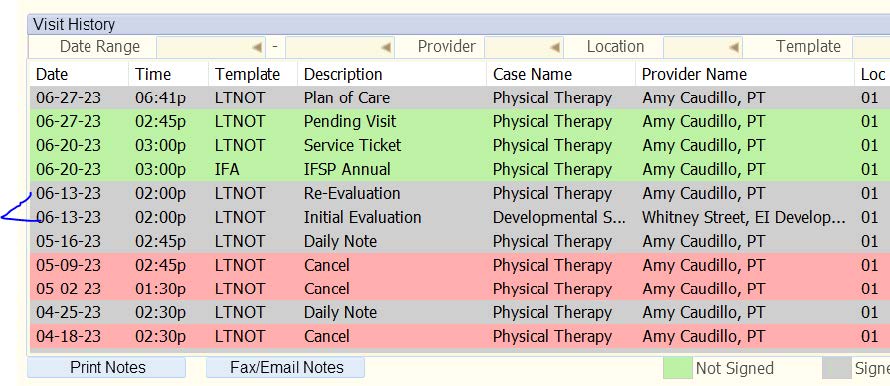
- The functional eval is up at the top next to Eval Report, click where indicated and choose the most recent evaluation. Note: the date listed is NOT the evaluation date, it’s the date it was combined, so it should be roughly correct but won’t match the schedule date (and that’s okay here)
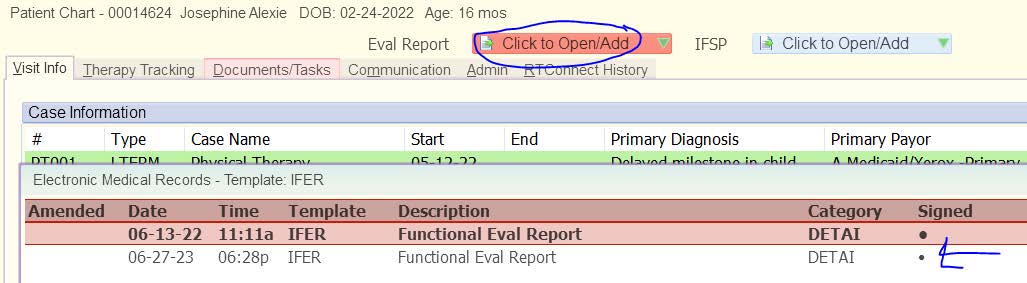
- Once opened the main page shows the following information to check:
- Date of referral: previously pulled automatically, no longer does, is not required.
- Date of evaluation: should match the individual evals scheduled (that you just made note of)
- Evaluators names: should also match the individual evals you just made a note of
- Evaluation/Assessment tools and methods used: the usual 3 are Clinical Observation, Formal Testing/Standardized Assessment (both count as the IDA Anchor Tool in the state database), and Parent Report. There can be more if medical records were used or even requested but not received.
- Eligibility Determination: If the child is eligible, then one of the three boxes needs to be checked. If Informed Clinical Opinion, then the State of Support and Areas also need to be completed. If the child is not eligible the option “Child is not eligible for Part C services” should be marked.
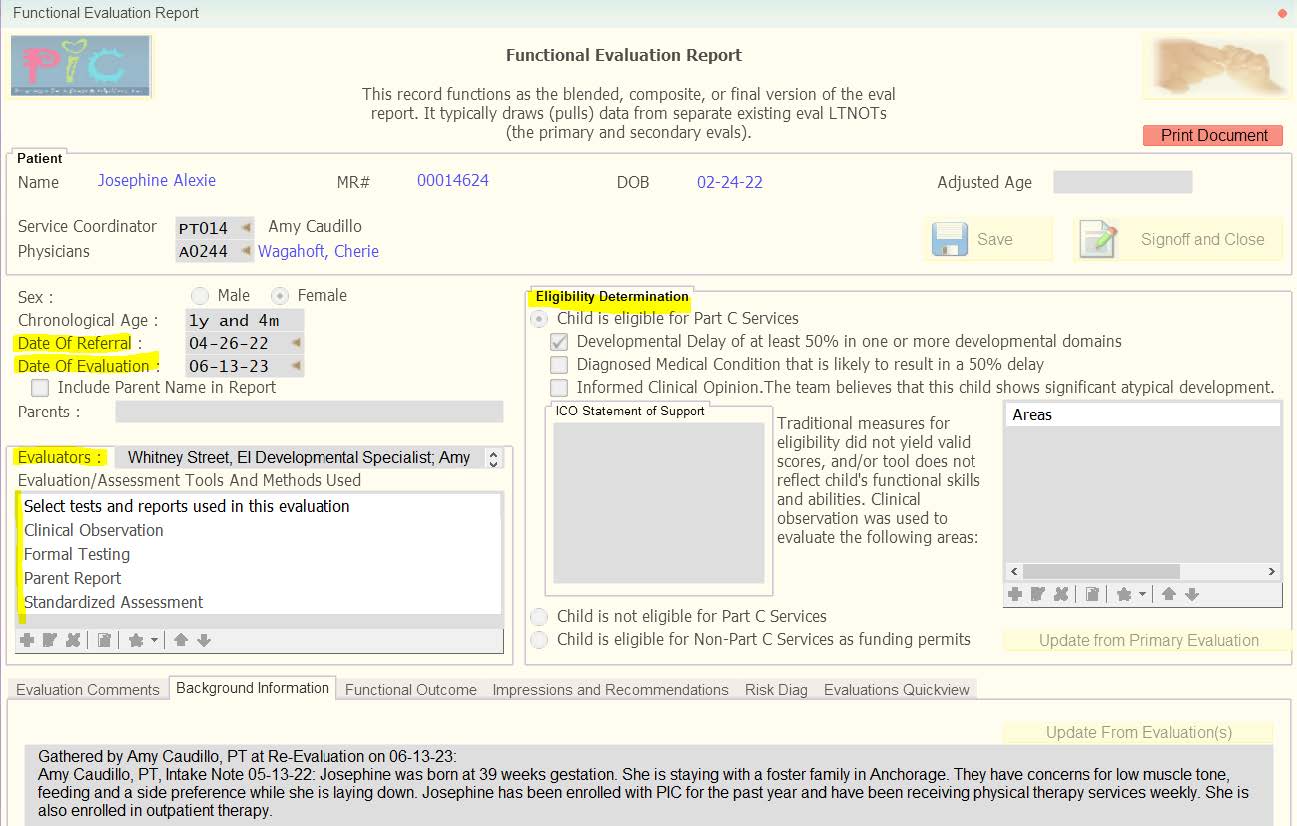
- After you’ve checked the main page, go the Functional Outcome tab (on the bottom third of the page) and scroll down to check that all three text boxes have both text and a radio button selected

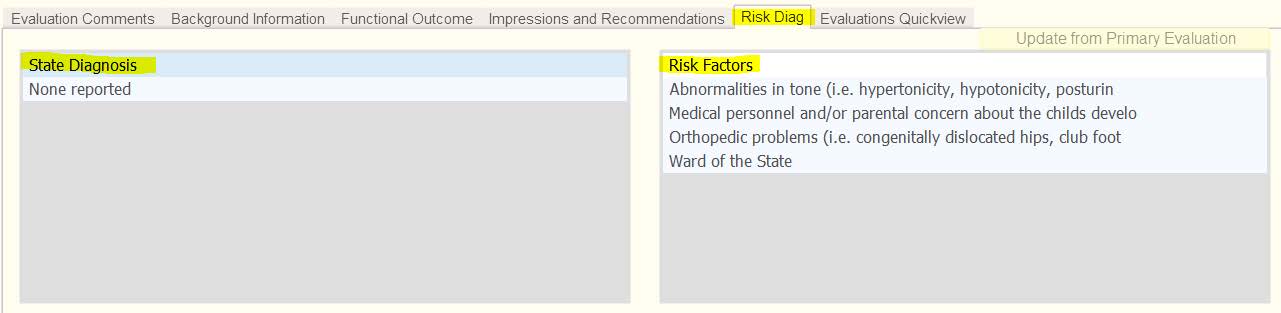
- Two tabs to the right is the “Risk Diag” tab with the State Diagnosis and Risk Factors. These can both be “none” but must be filled out (no assuming none if left blank).
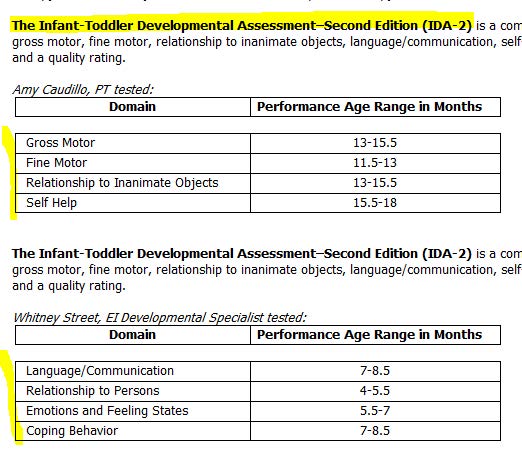
- Finally, up in the top right corner is a “Print Document” button, click that to review the IDA-2 scores are all there and none are duplicated. The 8 domains are:
- Self Help
- Relationship to Inanimate Objects
- Fine Motor
- Gross Motor
- Language/Communication
- Relationship to Persons
- Emotions and Feeling States
- Coping Behavior
- If everything is complete, add a note to the state database task “mm/dd eval comp” and set the due date to the next state database entry day. Otherwise, task the primary provider for any missing or incorrect information.
Provider: How to complete Function Evaluation using Medical Records
If there is not a secondary evaluator, or the provider determines that medical records are present and can be used to determine eligibility-- the provider must use recent medical records to evaluate the child.
- If the child is qualified by medical diagnosis, Part C determination regulations require that the diagnosis appear in the medical records.
- Records must be less than 6 months old at the time of primary evaluation

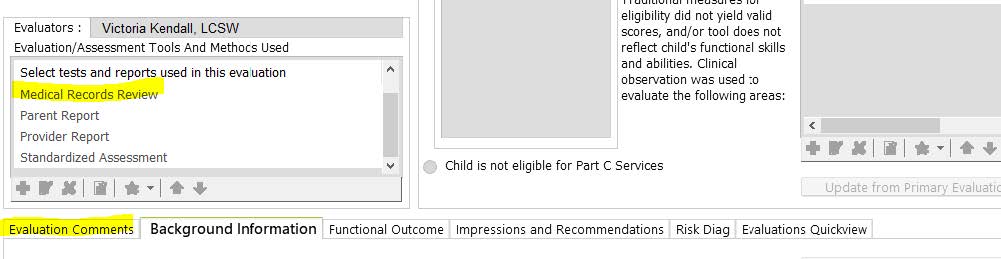
Provider will indicate that Medical records were reviewed as indicated above ^^^
As well, provider will indicate in the Evaluation Comment tab (see illustration below) that medical records were used this day to support determining eligibility:
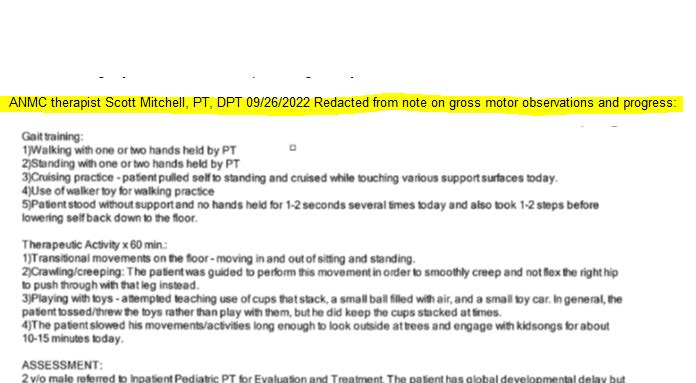
The primary evaluator will complete the entire IDA-2, and report scores on the Objective Tab in their Initial Eval. The medical record’s provider narrative/descriptions will be added to the Functional Eval when the primary rolls the Initial Eval to the Functional. A Snip It, or screenshot, is the easiest way to add these narratives to the Functional Eval, however sometimes you might have to re-type the information and reference the source.The primary will indicate that the sections that are screen shots are redacted, and indicate the provider and the date of the original record at the head of each screenshot:
Admin: How to enter Function Evaluation using Medical Records
When you see this on a functional evaluation report, if the provider states that they used medical records, then they should have rolled in those previous evaluation to get the scores to this functional evaluation.
In the case of an evaluation from another ILP/non-provider specific report, go into medical records and get the evaluators from that report for the roles drop down in SDB.